
Join external sessions directly from your calendar
Attendees can now join Zoom, Teams and other externally hosted sessions directly from their session calendar entries. New session invitations, calendar downloads and Google Calendar entries include the meeting link when direct joining is enabled.
Under Live & Replay Experience, use Direct join links in reminders and session calendars? to choose whether attendees go straight to the meeting or visit the HeySummit session page first. Reminders and session calendars now follow the same setting.
Whole-event calendar entries are unchanged. If a meeting link is not available when a calendar entry is created, it links to the HeySummit session page instead.
Add an author bio and links to your event blog posts
We're rolling out author profiles for event blog posts. This will be available within the next 30 to 60 minutes.
Open Website → Blog Posts → Your Author Profile to add a public author name, a short bio, your website, and social or other public links. Your photo comes from My profile.
Your author details appear beneath blog posts where you're selected as the author, across your events. Leave the bio and links blank to keep just your existing byline.
Track event conversions from ChatGPT Ads
You can now track conversions from your ChatGPT Ads campaigns in HeySummit.
In your event dashboard, go to Event Settings → Integrations → Paid Ad Conversion Pixels, click Add, choose ChatGPT Ads, and enter your Pixel ID from OpenAI Ads Manager → Conversions.
HeySummit automatically sends standard events for leads, completed registrations and paid purchases, including purchase amount and currency. Tracking runs after visitors accept cookies.
You'll need access to OpenAI Ads Manager and matching conversions configured there to measure your campaigns.
Review submissions and sponsor applications across your events
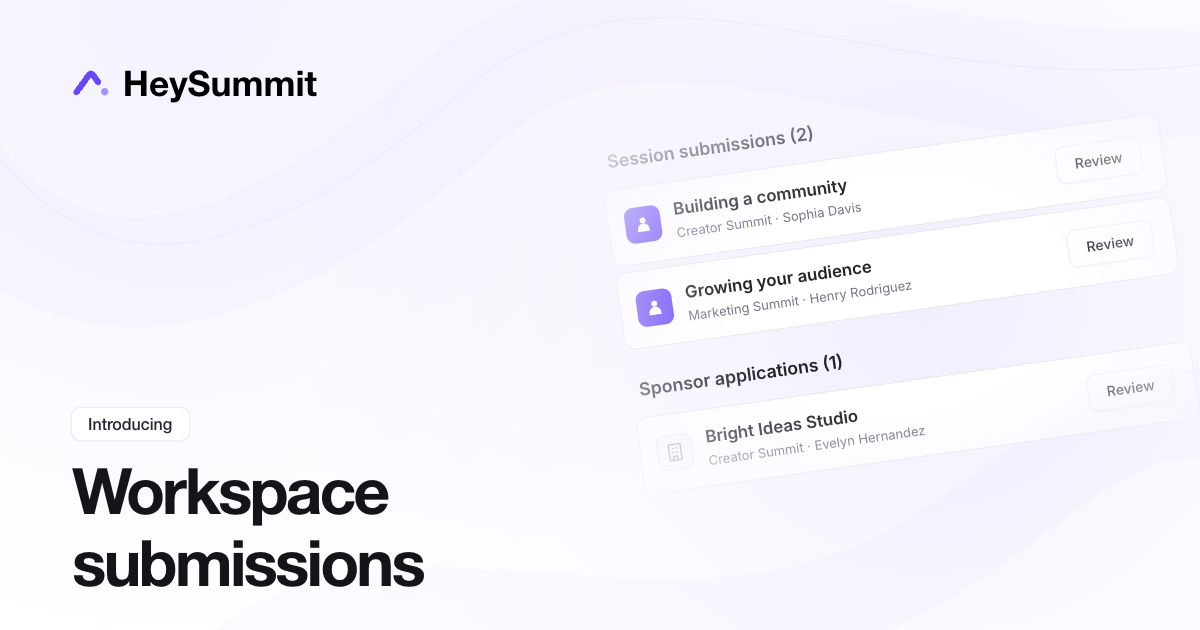
You can now see session submissions and sponsor applications awaiting review across all active events in a workspace.
Open your workspace dashboard and scroll to Session submissions and Sponsor applications at the bottom. Each section shows a total and the event behind each submission or application. Select Review to open that event's review list.
If you manage several events, this gives you one place to check what's waiting. You can still review items from each event's At a glance dashboard or its content and sponsor management areas.
Publish events and change timezones through your AI assistant
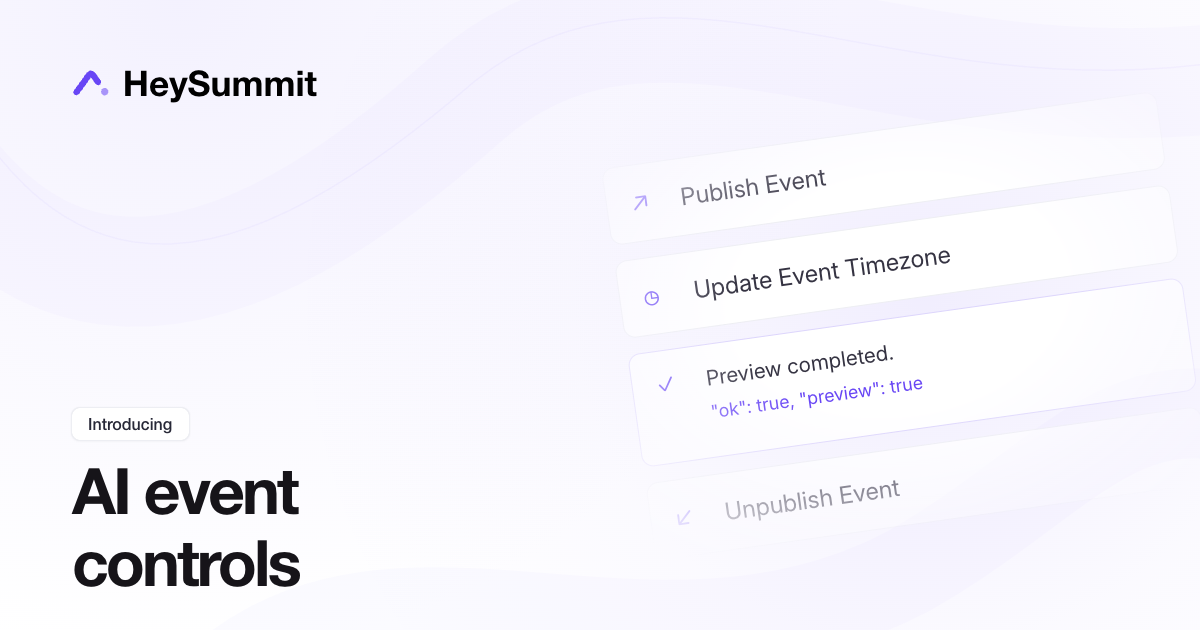
Connected AI assistants can now publish or unpublish your HeySummit events and change an event's timezone through MCP. The same actions are available to API v2 integrations.
Start with a preview, review the event and proposed change, then explicitly confirm before applying it. These actions require event-write access on an active paid plan. Publishing uses the same account checks as the dashboard and may notify eligible brand subscribers.
Timezone changes preserve the actual start times of existing sessions while updating the event's timezone and local time labels. Unpublishing keeps your event content and registration history.
Connect your AI assistant and see example prompts.
Review and export attendee feedback answers
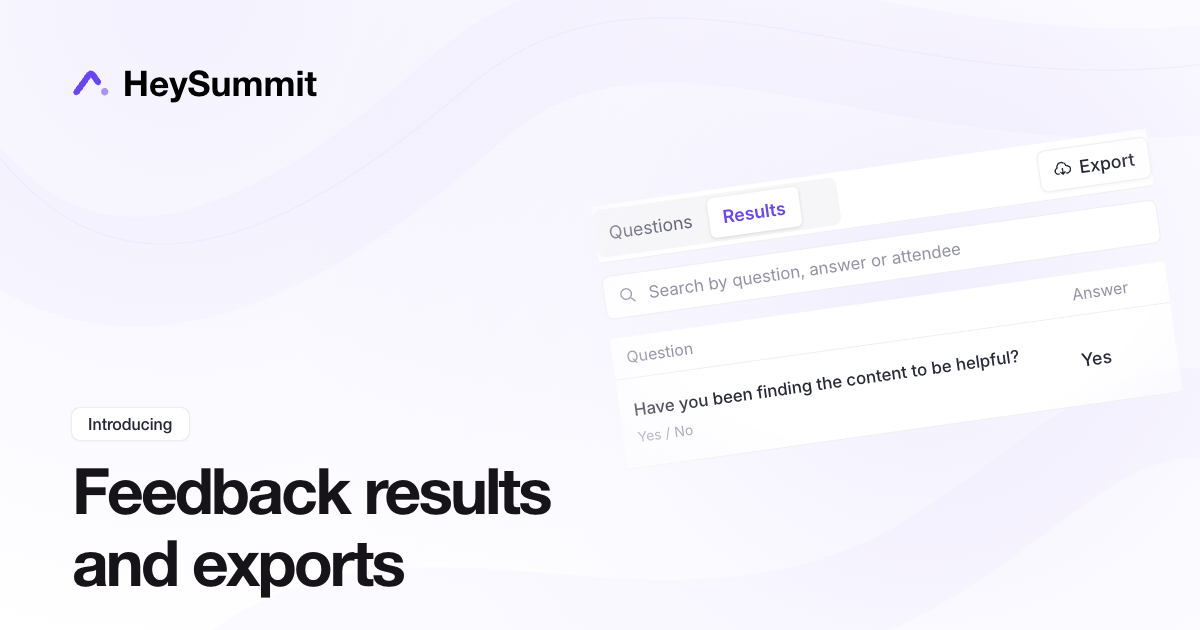
You can now review individual feedback answers together in the Results tab under Registration & Attendees > Attendee Feedback.
Search by question, answer or attendee, then export the matching responses to CSV for analysis and follow-up. Each export includes the question, answer type, attendee details and submission time.
The Questions tab still contains your prompt settings and per-question summaries. Learn how to review and export feedback.
Reuse offers, freebies and giveaways with the Perk Library
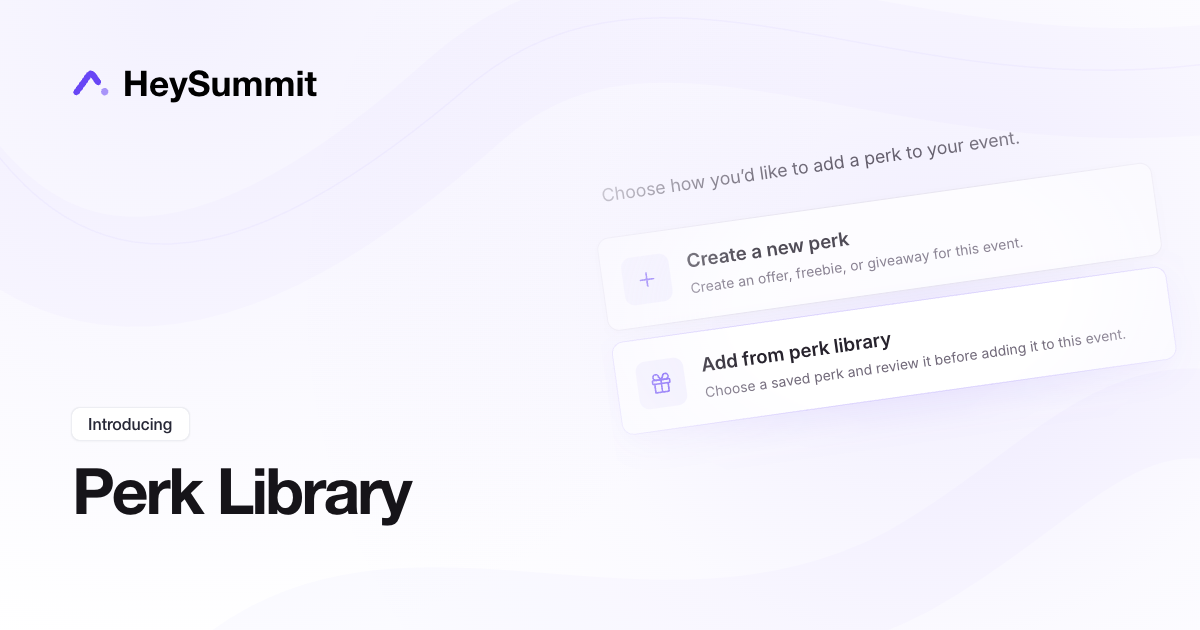
You can now keep reusable offers, freebies and giveaways in an account-wide Perk Library, ready to use across your events.
Find Perk Library in your account dashboard, or save a perk to the library while editing it in an event. To reuse one, open Offers & Giveaways, choose Add → Add from perk library, then review and save it for that event.
Each event gets its own copy. You can adjust ticket access, presenters, sessions and giveaway timing for the destination event without changing your saved template or other events. Updating a library template is an explicit choice and leaves existing event copies unchanged.
The Perk Library is rolling out to all accounts now.
Find offers and giveaways with images and search
Attendees can now search your event’s perks page by title, description or provider to find the offers, freebies and giveaways they want.
Your existing group tabs stay in place, and their counts update as attendees search. Each tab shows how many matching perks it contains, including zero.
Uploaded perk images now appear beside the title on the main perks page when no custom icon is selected. To add an image, edit the perk under Marketing → Offers & Giveaways. If you’ve chosen an icon, it continues to take priority.
Import and export event translations
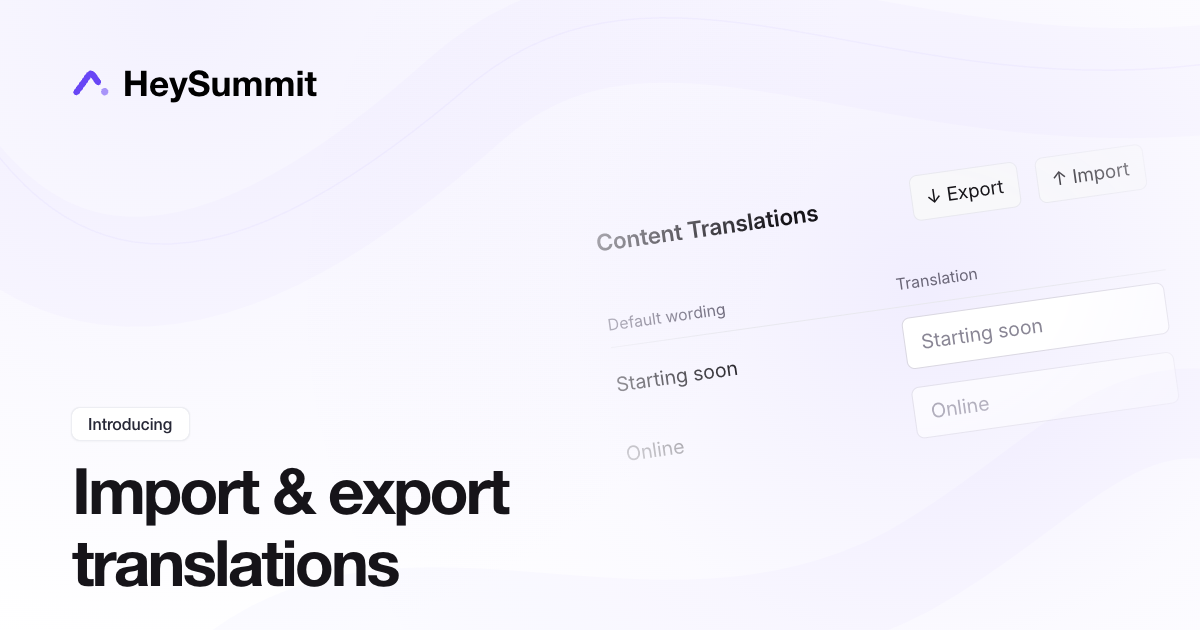
You can now export custom event wording to a CSV, edit it in a spreadsheet, and import it into another event. Reuse terminology from a past event or prepare translations in bulk.
Open Event Settings > General > Content Translations and choose Export. Keep the Translation key column unchanged, then fill in the Translation column with your wording. Choose Import in the destination event to upload the file and map its columns.
Blank translations are skipped. Existing custom wording is kept unless you turn on Replace existing custom wording?. Keep placeholders such as {} unchanged so names and other details still appear correctly.
Imports update event-wide wording only. Page-specific wording and your event language setting stay as they are.
Review chat and poll activity across your sessions
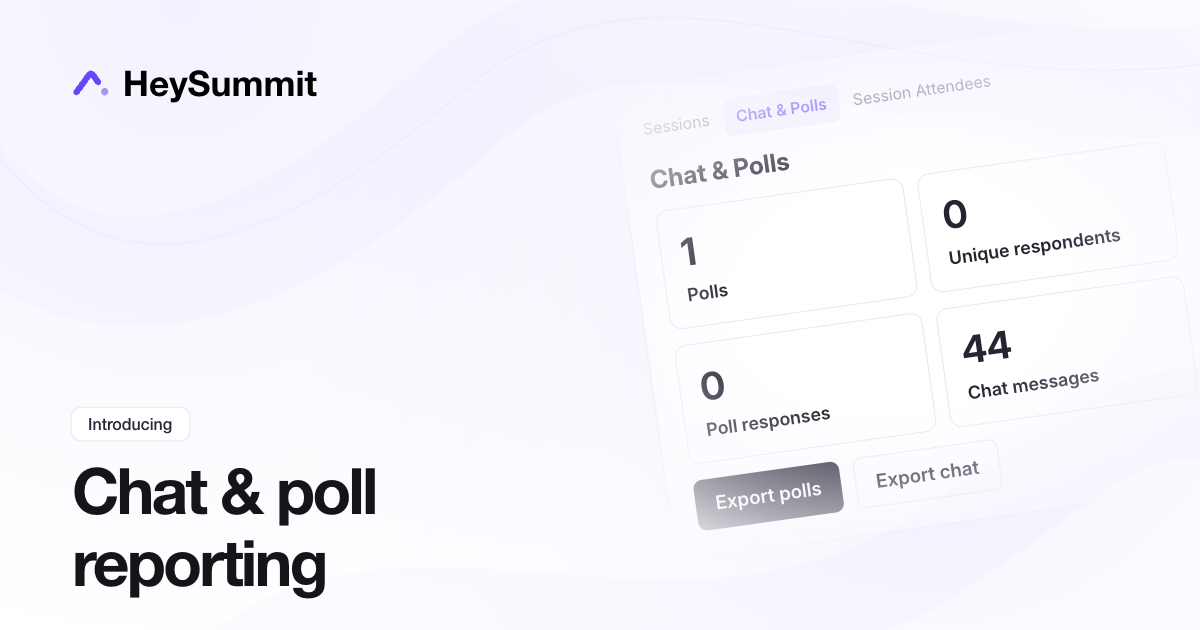
The new Chat & Polls report brings session participation into one place. See how many polls, unique respondents, poll answers and chat messages your sessions have collected.
Open Content & Schedule > Reports > Chat & Polls, then filter by session or scheduled session date. The date range follows your event timezone and includes later replay answers for those sessions.
Choose Export polls or Export chat to download the selected sessions' activity in one CSV. HeySummit emails you a download link when the file is ready, so you can prepare your post-event report without opening each session separately.
Learn how to review and export session activity.