
Personalise your workspace public page and manage subscribers

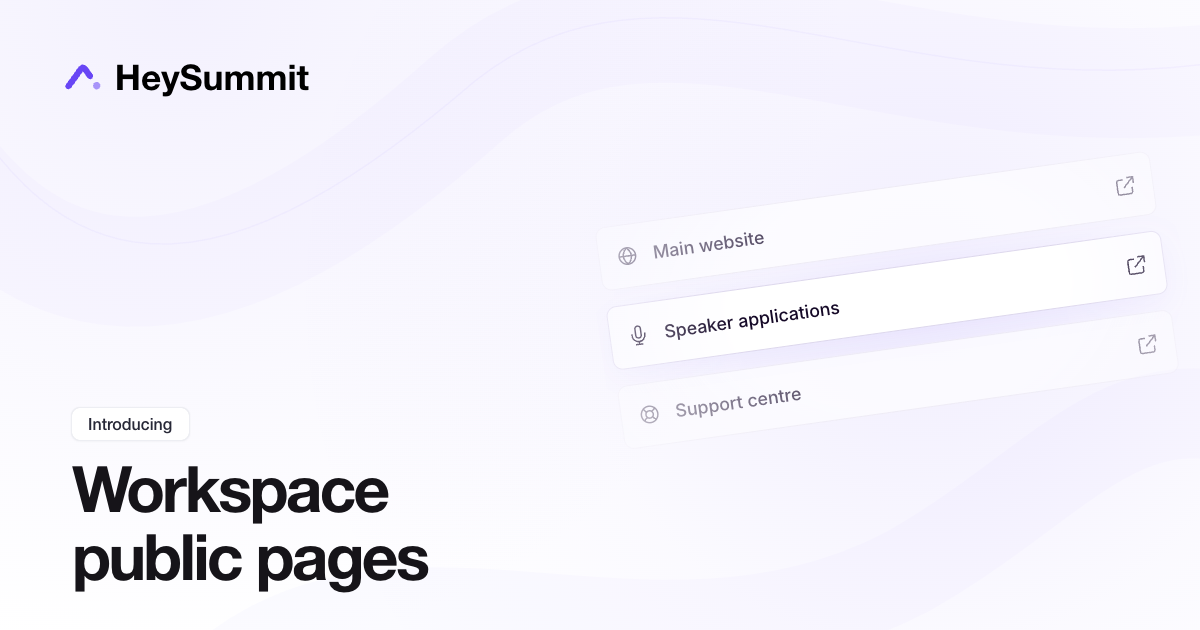
Your workspace public page can now point visitors to the places that matter between events, with a separate public brand name and access to the people who subscribed for updates.
In Public Page Settings, use Presented by (public brand name) to choose the name visitors see. Leave it blank to use the workspace name, or set a public brand name while keeping a different workspace name inside your account.
Open Public Links in the workspace dashboard to add links to your website, speaker applications, community or support site. Give each link a title and optional icon, drag links into order, and make them active or inactive. Active links appear on your public page and open in a new tab.
The new Subscribers page lists people who opted in to new event updates from that workspace. Workspace owners can correct an email address, unsubscribe someone or delete a record. Existing consent and unsubscribe history are preserved when editing an address.